
Download PC Screen Capture – Free Screen Recording & Screenshot Tool for Windows
Looking for a reliable, lightweight, and completely free screen capture tool? PC Screen Capture is your go-to solution for instantly capturing screenshots and recording screen activity on Windows. Whether you're a student taking notes, a professional creating tutorials, or someone troubleshooting a technical issue, this powerful yet simple software delivers high-quality results without the cost.
With support for multiple image formats like JPG, BMP, and GIF, and intuitive controls accessible right from the top menu, PC Screen Capture ensures a seamless experience. It’s perfect for quick captures, detailed annotations, or sharing content across email and social media. Best of all, it’s free to download and use—no hidden fees, no watermarks, no ads.
Ideal for users who value speed, simplicity, and security, this tool runs efficiently on most Windows systems and even supports portable use via USB. Say goodbye to complex software—download PC Screen Capture today and take control of your screen with ease.
Key Features of PC Screen Capture
PC Screen Capture stands out in the crowded field of screen capture tools thanks to its smart blend of functionality and simplicity. One of its most praised features is the ability to capture entire screen views or select specific regions with precision. Whether you're documenting a software bug, saving a webpage section, or highlighting a key detail in a presentation, this tool lets you focus exactly where you need to. The intuitive drop-and-drag interface allows users to quickly define capture areas, reducing time spent on manual adjustments. This is especially helpful during fast-paced tasks like live troubleshooting or creating step-by-step guides.
Another standout feature is its support for multiple output formats, including JPG, BMP, and GIF. This flexibility makes it ideal for different use cases—JPG for compressed images, BMP for high-quality static captures, and GIF for short animated clips. Users can also save their captures directly to their preferred folder or share them instantly via email or social media platforms. The clean, minimal interface ensures that even first-time users can get started within seconds, with all essential tools accessible from the top menu bar. No confusing settings or cluttered dashboards—just straightforward functionality.
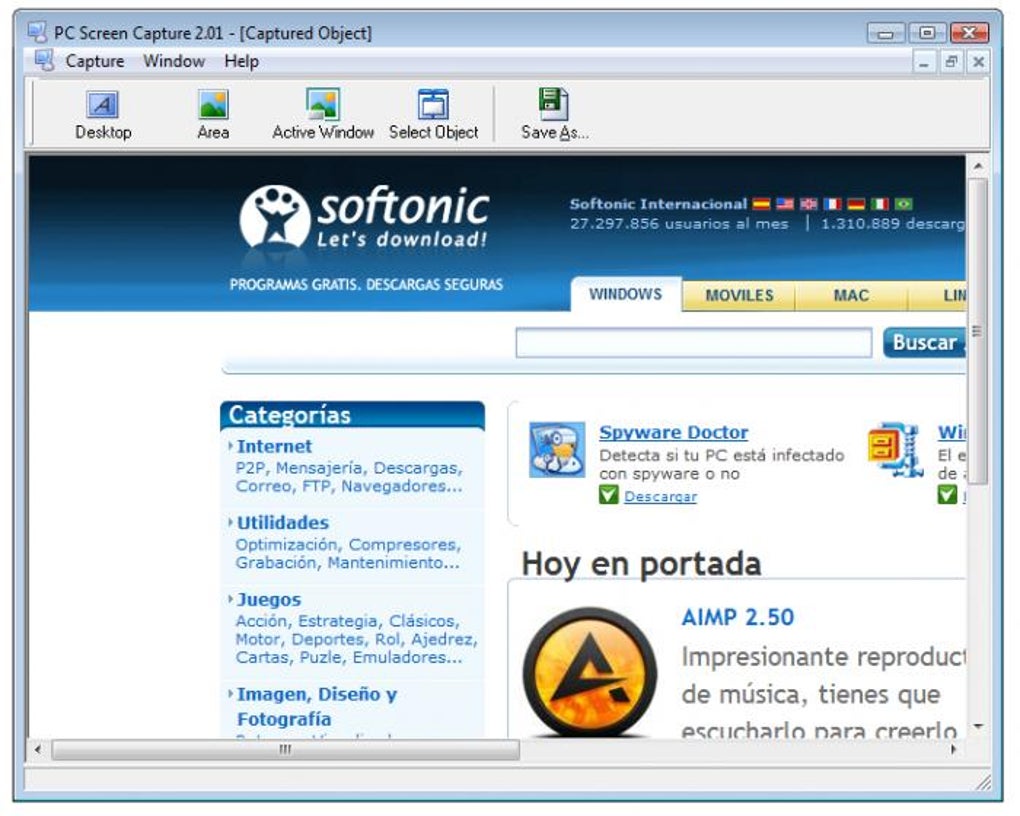
For advanced users, PC Screen Capture offers the ability to capture specific UI elements like bookmarks, address bars, or navigation menus. This is a game-changer for developers, designers, and IT support teams who need to document specific parts of a website or application. The software also supports portable operation, meaning you can run it directly from a USB drive without installing it on your hard drive. This makes it perfect for use on shared or public computers, enhancing both convenience and security. Whether you're on the go or working in a restricted environment, PC Screen Capture adapts to your workflow.
How to Install and Use PC Screen Capture on Windows
Getting started with PC Screen Capture is a breeze, thanks to its lightweight design and minimal system requirements. To begin, visit the official download page and click the “Download Free” button. The installer is small in size—typically under 10MB—ensuring a quick and secure download process.
Once downloaded, run the executable file and follow the on-screen prompts. The installation wizard is straightforward, requiring only a few clicks to complete. No need to configure complex settings during setup—just accept the defaults and let the software install itself.
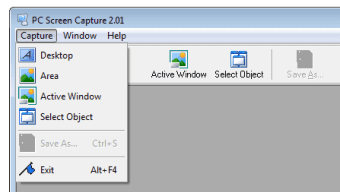
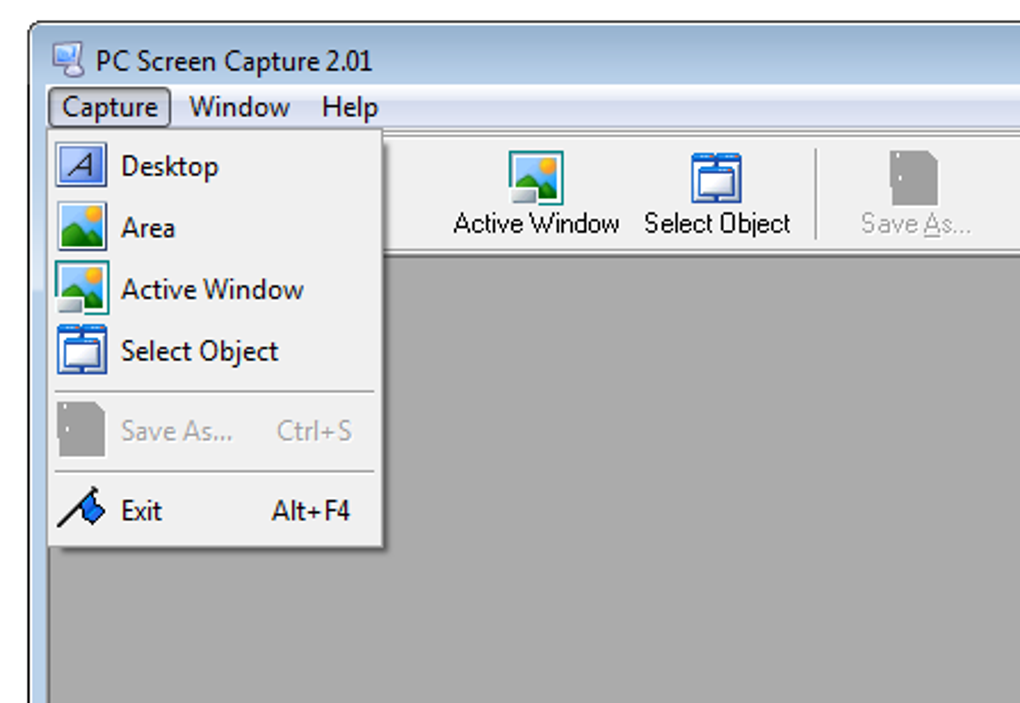
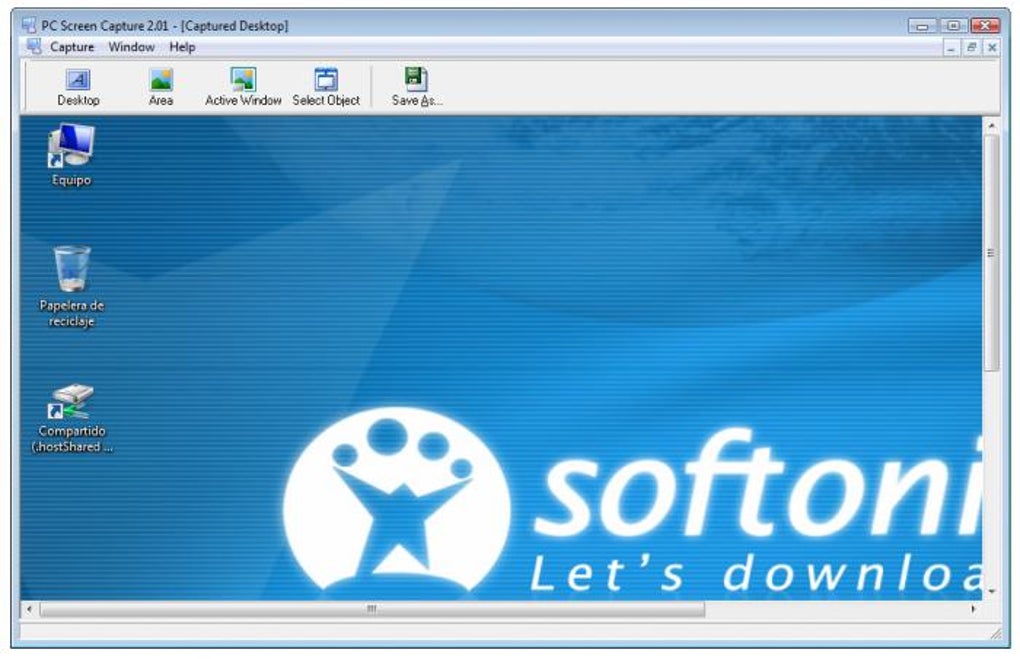
After installation, launch PC Screen Capture from your desktop shortcut or Start menu. Upon opening, you’ll be greeted with a clean interface featuring a top menu bar with all core functions. To capture a screenshot, simply click the “Capture” button or use the default keyboard shortcut (usually Ctrl+Shift+S). You can then select the entire screen, a specific window, or manually drag to define a custom region. Once the area is selected, the tool instantly captures the content and opens it in a preview window.
In the preview, you can edit the image—add text, arrows, or blur sensitive information—before saving or sharing. Choose your preferred format (JPG, BMP, GIF), select a destination folder, and click “Save.” For frequent users, the software remembers your last settings, so you don’t have to reconfigure every time. If you prefer not to install the software, you can use the portable version by copying the extracted folder to a USB drive and running the executable directly. This is ideal for temporary use or when working on systems with restricted admin rights. Regular updates are available to improve performance and fix bugs, so always keep your version up to date for the best experience.
Compatibility & System Requirements
PC Screen Capture is designed to run smoothly on a wide range of Windows operating systems, ensuring broad accessibility. It is fully compatible with Windows 7, Windows 8, Windows 10, and Windows 11, making it suitable for both older and modern machines. The software is lightweight, consuming minimal RAM and CPU resources, which means it won’t slow down your system—even when running in the background. This efficiency is ideal for users with low-end laptops or older desktops who still want reliable screen capture functionality.
There are no strict hardware requirements, but a screen resolution of at least 1024x768 is recommended for optimal usability. The software supports multi-monitor setups, allowing you to capture content from a single display or across multiple screens simultaneously. This is particularly useful for users managing complex workflows or presenting across multiple monitors. Additionally, the portable version can be used on any Windows device without installation, offering flexibility for users who work across different computers.
While PC Screen Capture is currently available only for Windows, its cross-platform functionality is being considered in future updates. For Mac and Linux users, similar tools like Snagit or Greenshot may be alternatives, but PC Screen Capture remains the best free option for Windows users. The developers regularly release updates to maintain compatibility with new Windows versions and security patches. You can check for updates directly within the app or via the official website. With its strong support for Windows systems and ongoing improvements, PC Screen Capture is a future-proof choice for anyone needing a reliable, secure, and free screen capture tool.
Pros and Cons of PC Screen Capture
- Pros:
- Completely free to download and use—no hidden costs or trial limitations
- Lightweight and fast, with minimal impact on system performance
- Supports multiple image formats: JPG, BMP, GIF for versatile use
- Intuitive interface with easy-to-access top menu and keyboard shortcuts
- Portable version available—run directly from USB without installation
- Perfect for quick captures, troubleshooting, and sharing via email/social media
- Regular updates ensure security and compatibility with new Windows versions
- Cons:
- Limited to Windows operating systems (no Mac or Linux support yet)
- No built-in video recording—only still images and GIFs
- Basic editing tools compared to premium software like Snagit or Lightshot
- No cloud storage integration or automatic sync across devices
- Minimal customization options for hotkeys or capture behavior
Frequently Asked Questions (FAQ)
What is PC Screen Capture used for?
PC Screen Capture is a free tool designed for capturing screenshots and recording screen content on Windows. It’s ideal for saving images from webpages, creating tutorials, documenting software issues, sharing content via email, or capturing specific UI elements like menus and address bars.
Is PC Screen Capture free to download?
Yes, PC Screen Capture is completely free to download, install, and use. There are no trial periods, watermarks, or hidden fees. You can use all features without any cost.
Can I run PC Screen Capture from a USB drive?
Yes, the portable version allows you to run the software directly from a USB stick without installing it on your hard drive. This is perfect for use on public or shared computers.
Does PC Screen Capture support video recording?
No, PC Screen Capture does not support full video recording. However, it can create animated GIFs from screen captures, which are useful for short, looping clips.
Which Windows versions are supported?
PC Screen Capture is compatible with Windows 7, Windows 8, Windows 10, and Windows 11. It works on both 32-bit and 64-bit systems.
Final Verdict: Why You Should Download PC Screen Capture Today
If you're searching for a fast, secure, and completely free screen capture tool for Windows, PC Screen Capture is an excellent choice. It combines essential features like region selection, multiple file format support, and a clean interface with the added benefit of being portable. Whether you're a student, teacher, IT professional, or casual user, this software delivers reliable performance without the complexity of premium tools. While it lacks video recording and advanced editing features, its core functionality is robust and efficient.
Best of all, it’s free—no strings attached. With regular updates and strong compatibility across Windows systems, PC Screen Capture remains a top contender in the free screenshot tool category. If you need a lightweight, no-fuss way to capture your screen, don’t hesitate. Download PC Screen Capture now and experience seamless, secure, and instant screen capture on your Windows PC.







